 Llama Builder
Your picture and stickers belong to the selected swatch.
Art Image
Click Upload and choose a PNG, JPEG or WebP picture. Animated pictures don't work. On a phone or tablet, Take Photo uses your camera. To remove the picture, hover over it and click the x in its corner.
On a table, this panel is called Top Art.
- Canvas Color: fills the gaps that Contain and Custom leave around your picture. Wall art only.
Image Fit
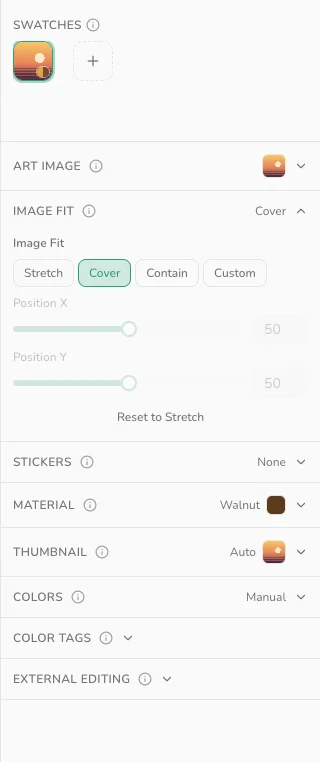
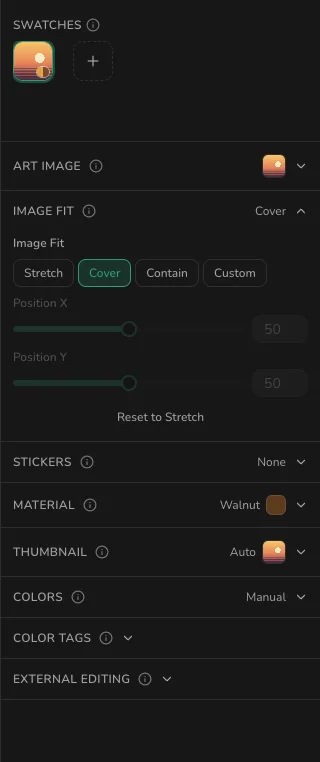
Wall art and rugs only.
- Stretch: fills the canvas, squashing a picture of another shape.
- Cover: fills the canvas and crops what hangs over the edges.
- Contain: shows the whole picture, leaving gaps on two sides if the shapes differ.
- Custom: set Width and Height yourself. Click Aspect Ratio Locked to size each side on its own.
- Position X and Position Y: every fit but Stretch. Slide to pick what's cropped or where the picture sits. They're greyed out when it can't move that way, like a square picture on a square canvas.
- Tile / Repeat: only with Contain or Custom. In Custom, lower Width and Height to fit more copies.
- Reset to Stretch: also clears position, size and tiling.
Rugs add Art Rotation, Repeat Across and Repeat Down here.
Stickers
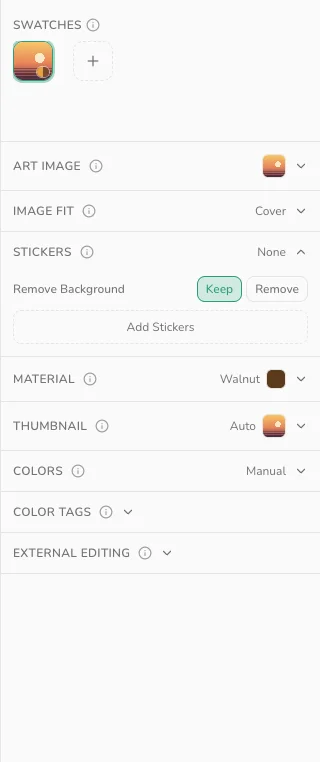
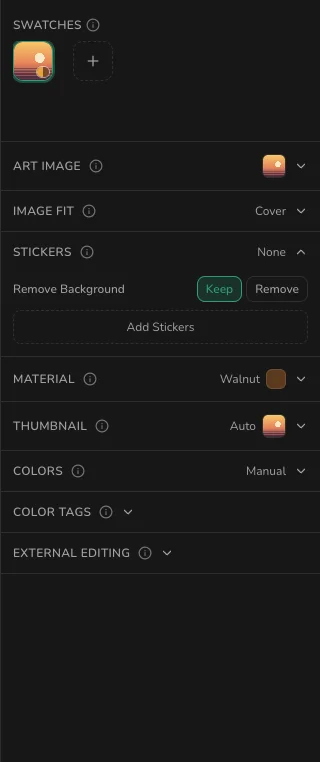
Click Add Stickers and choose one or more pictures, like a monogram for a corner. Each swatch holds up to 16.
On wall art, rugs and tables, drag a sticker on the preview to move it, a corner to resize it, or the round handle to turn it. Hold Shift while turning to snap to 15° steps. The sliders under the list do the same, plus Opacity. On a vase, use the sliders.
A sticker lower in the list sits on top. Use the arrows to reorder, and the x to delete.
Remove Background
Choose this before you add a sticker. Remove keeps the main subject, like your cat, and cuts away the room behind it. Keep uses the picture as it is.
Removal runs on your device, not on a server. The first time takes a moment to load. To change your mind, delete the sticker and add it again.