 Llama Builder
A rug in three colorways is one item with three swatches. Everything in the right panel below the swatches changes only the selected one.
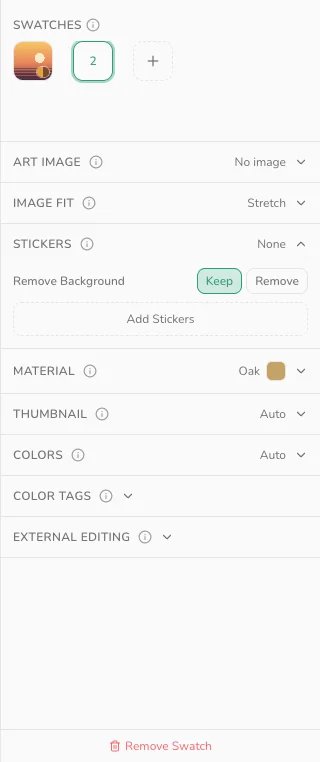
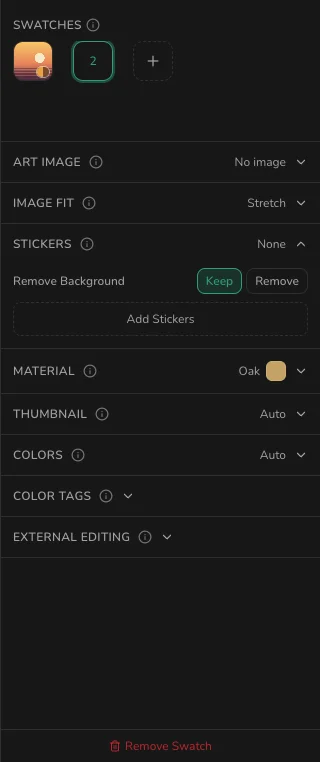
Swatches
Click + to add a swatch. It starts fresh, with no picture. Click a swatch to edit it.
Remove Swatch, at the bottom of the panel, deletes the selected swatch. It appears once you have two. It doesn't ask first, so undo if you remove the wrong one.
All swatches download in one .package.
Thumbnail
Each swatch has its own picture in the game's catalog.
- Auto: your art. Tables use the game's own picture instead.
- Upload: a picture of your own.
- Customize: a shot of the 3D item that you set up.
Anyone can set Upload or Customize. Your thumbnail reaches the game in the download, which needs the Creator plan.
For Auto and Upload, pick how a wide painting fits the square under Thumbnail fit:
- Contain: all of it, on Fill color.
- Cover: crops the sides.
- Stretch: squashes it.
Customize
Drag the preview to turn the item, then pick a backdrop, lighting and any extras. Project default sets the look for every swatch that uses Customize. This swatch changes only the selected one.
Colors
Up to three colors that show on the swatch's button in the game, and as a small stripe on the swatch in the editor.
- Auto: picks them from your art.
- Manual: pick them yourself with Add Color. Use it for a swatch with no picture, like a plain rug, or the game shows it grey.
Color Tags
Click the colors a player might filter by to find this swatch, like Red and Pink for a rose print.
Dotted colors are suggestions from Colors, and they're on until you click one. After that, if you change the picture, click Suggest from image to add the new ones.
External Editing
- Click Export to save the swatch's texture as a PNG.
- Edit it in any image editor, such as Photoshop or GIMP. Keep its size and save it as a PNG.
- Click Import and choose your edited file.