 Llama Builder
Lay your own wood, tile, stone, carpet or terrazzo, and your floor shows up in Build mode under Flooring.
One project is one catalog tile. The structure is the project's, so every swatch is the same floor in different colours, the way EA's own floors work.
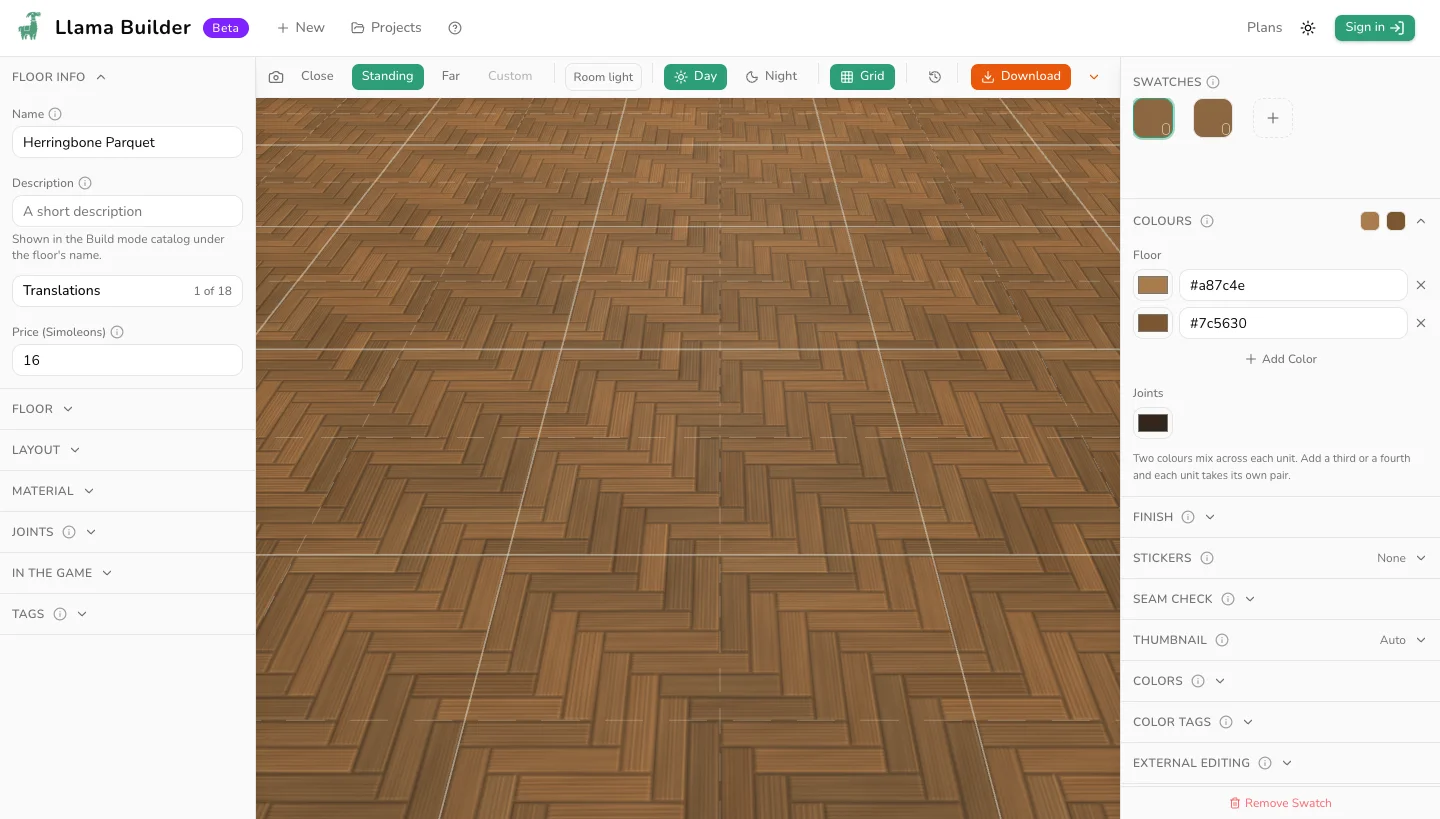
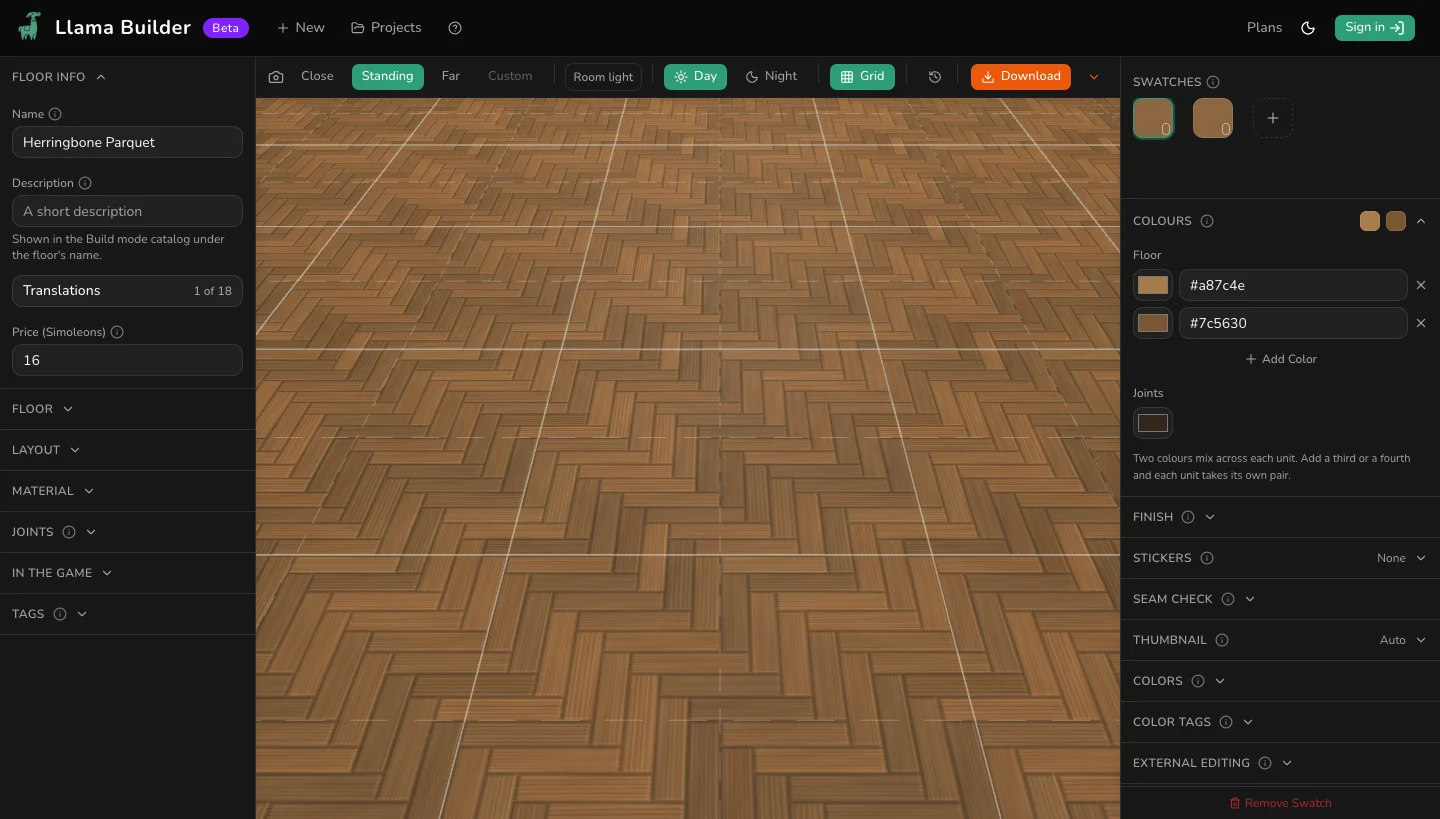
Floor Info
Name, description and price work as any object's do, under Info. The price is per tile, and every swatch shares all three.
Floor
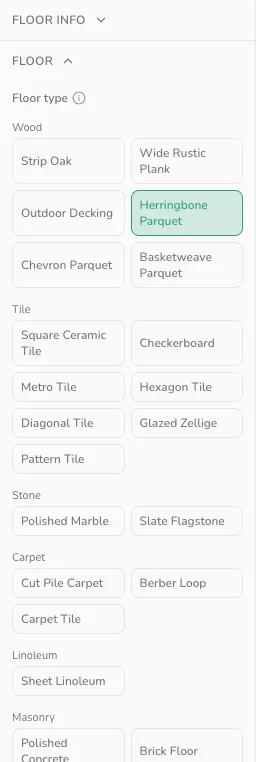
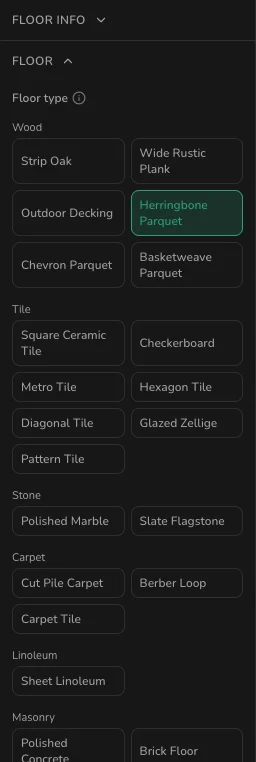
Twenty-nine floor types to start from, grouped as Wood, Tile, Stone, Carpet, Linoleum, Masonry, Metal, Misc and Photo. Picking one replaces the structure, the catalog tab, the sound and every swatch's colours.
Repeat is how much floor one texture covers before it starts again: 1 m is one in-game tile, 2 m is most floors, 4 m suits long boards and big slabs. A longer repeat spends more pixels on the same detail, so a 4 m floor exports a 1024 texture where a 1 m floor exports 256.
Also make it at ships the same floor again at the other two sizes, each one its own item in the Build mode catalog. A size is the whole design scaled, not the texture stretched: a 4 m copy of a 1 m checkerboard has cells four times across and grout four times wider, which is how you match EA's sidewalk slabs or a terrain paint. Every size carries all the swatches, the price, the sound and the tabs, and takes its own name in the catalog. The preview stays on the repeat you are working at, and changing that repeat drops it from the list, because it is the floor now. Drop a size and add it back and it returns as the same item, so a fresh download replaces the floors already laid in your save.
Edit anything and Reset to Strip Oak appears, named after the floor type you are on.
Layout
How units are laid across the repeat: Planks, Grid, Running bond, Herringbone, Chevron, Basketweave, Diagonal, Hexagon, Versailles panel, Chantilly panel, Natural stones, or One surface for no units at all.
Versailles panel and Chantilly panel are French parquet panels: a frame of four boards round woven strips with squares between them, on the diagonal for Versailles and square to the frame for Chantilly. Size is the panel's side; makers sell both at 1 m, which is one panel to a tile.
- Size: a unit's short side. It snaps so whole units fill the repeat, and the line under it says what you got: 16 across 2 m, 12 cm each.
- Length: how many times longer than wide, for the layouts that have a long way round.
- Length variety: how much board lengths differ on a plank floor. At 0 every board is the same length.
- Randomness: how far natural stones stray from a regular grid.
Turn on the checker and every other unit takes the second colours. Turn on the quarter turn and each unit's pile or art faces a different way.
Material
What one unit is made of: Plain, Wood, Stone, Marble, Concrete, Terrazzo, Cut pile, Loop weave, or Your art.
Wood and art are drawn into each unit, so picking either lays the floor in planks or a grid.
- Ring spacing, Vein spacing, Pile size or Grain size: how big the material's own pattern reads. The name follows the material.
- Contrast: how strongly that pattern shows.
- Wander: how much wood rings and marble veins stray from straight.
- Knots and Veins: how often a knot lands in a board, and how strong marble's veins are.
- Relief: how raised and dented the floor looks in game. At 0 it reads flat.
Chips
Terrazzo scatters stone chips through its matrix. Up to three grades, each with a size and a count per square metre. The count's top follows the size, because big chips cover the floor sooner.
Joints
Fill is what sits between units: Grout takes the joint colour, Open gap reads as a dark shadow line, None leaves the bevel alone. Joint width is in millimetres, as a tiler would measure it. Bevel rounds a unit's edge over.
Border Set
The game cuts a floor wherever the room ends, so a real patterned floor's border, the band a little in from the wall with a plain margin outside it, is something you lay by hand. Make a border set ships it as four more Build mode items, one tile each, every swatch on all four:
- Border: the band along the edge of the tile that faces the room, with the plain margin, the apron, between it and the wall.
- Border Corner: for each corner of the room.
- Border Inside Corner: for the inside corner of an L-shaped room.
- Apron: the margin on its own, for a wider gap between the border and the wall.
Lay the floor in the middle of the room and the border pieces in the row along the walls, then turn each with the , and . keys until its band faces the room. The preview lays the set round its own edge, so the Far camera shows the whole room.
Band is what runs along it: Band is one run of the floor's own material in the border colours, Lines is two thin inlaid strips, Checker is two rows of squares, and Greek key is a key. Band width is from 10 cm to 50 cm. Corners are a Corner block, one square where the two runs meet, a Mitre, the runs meeting on the diagonal, or Continuous, one run carrying straight through the corner and the other ending on it, which keeps a Greek key or a checker unbroken. The apron is the floor's own material laid along the wall: boards run parallel to it, and tiles are laid straight.
Medallion adds a framed centrepiece, a Compass star or Rings, as one more Build mode item: a quarter of it, one tile. Lay four as a block of two tiles by two in the middle of the room, turning each until its frame is on the outside.
The border's colours are each swatch's own, under Palette. Until you pick some they are a contrast drawn from the floor's colours, darker on a light floor and lighter on a dark one. A photo or picture floor has no border set, because its colours are in the picture.
In the Game
Surface sound is the footsteps Sims make, and Catalog tab is where the floor lists in Build mode. They do not have to match: a painted concrete floor can sound like Concrete and list under Misc.
Also list under files the floor in a second tab as well, which 92 of EA's 1,121 floors do: Masonry and Stone, or Outdoor and Stone. Leave it on None for one tab. The floor's own tab is not on the list, since listing it twice in the same panel does nothing.
Environment Score and Eco Footprint write the same gameplay tags EA's own floors carry. Neither is set unless you pick a step, and nothing in game shows a number for either: there is no line in the Build mode tooltip and none in the Live mode panels.
Palette
One list for the units, a second for every other unit when the checker is on, a single colour for grout joints, and the border's colours when the project has a border set. Two colours mix across each unit. Add a third or a fourth and each unit takes a neighbouring pair of its own, which is what makes a wood floor vary board to board.
Finish
Shine is how polished the floor reads, from matte carpet to glazed tile. Unit to unit drifts each unit's colour a little from the next. Variation and Wear add blotching and dirt, and Brightness and Saturation move the whole swatch. Shuffle draws the floor again, so two swatches are not the same picture.
Room light in the toolbar switches the preview between a lit room and the open air. A polished floor catches each one differently, which is the thing to check before you pick a shine.
Art
On the Photo floor type, upload the picture the floor is made from. Shoot straight down in even light: one strong shadow repeats across the room. Photo covers sets how much floor one copy fills, and only widths the repeat divides into whole copies are offered. Seam blend fades the join where copies meet.
On the Your art material the picture is stamped into every unit instead, which is how a patterned tile works.
Seam Check
Pick 2 × 2, 3 × 3 or 6 × 6, and turn on Show tile edges to draw the joins. 2 × 2 is the view to screenshot if you upload to Mod The Sims. A built floor always wraps, so a line along an edge means a photo or an import: raise Seam blend, or edit the import again.